Scheduling through script revisions: the colours, the routine and what each change costs.
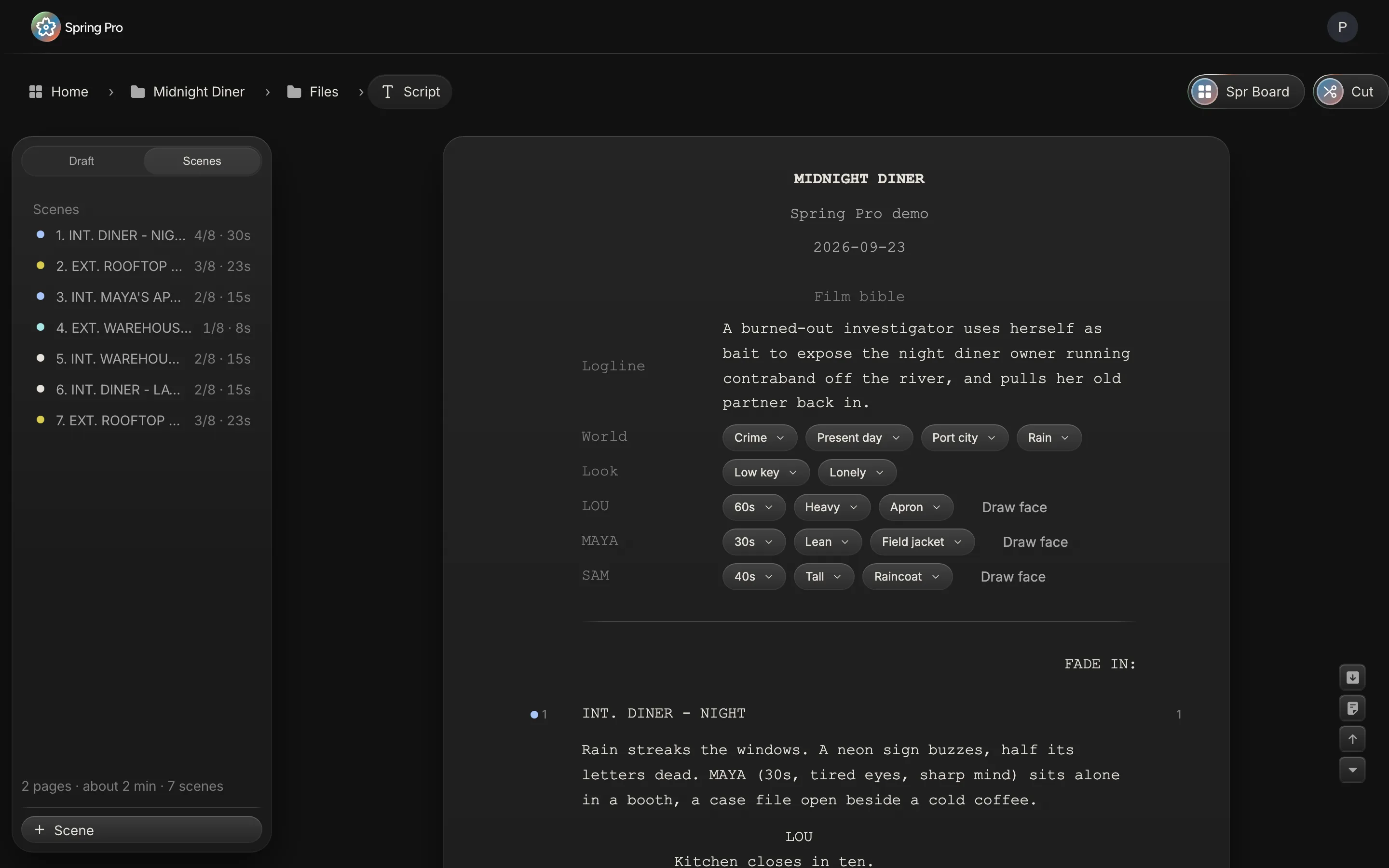
Real screen: Midnight Diner, our demo production, in Spring Pro.
The short answer. Revision colours mark each new set of script pages, and the guides we read agree on the first six: white, blue, pink, yellow, green, goldenrod. The colour tells people which pages are current. It does not tell you what to reschedule. For each changed scene, re-size it in eighths, update its breakdown, recheck its day for warnings, cast and cost, then reissue that day's call sheet.
A revision page says which pages are new. It does not say which shoot day just changed, so someone has to work that out, scene by scene. This guide is part of film production scheduling, and it works the pillar's revision routine through in full. It gives the colour order from sources read and dated below, then runs four revisions through Midnight Diner with Spring Pro's own engines, so you can see what each does to pages, warnings, cast days and the price of a day.
In this guide 21 sections
- Quick answers
- Why a revision is a scheduling event, and where it goes wrong
- The script revision colour order, as the sources give it
- How a revision is marked on the page
- The film we are revising
- Four revisions, traced through the schedule
- Before you start
- Step 1: List the changed scenes
- Step 2: Re-size the changed scenes in eighths
- Step 3: Update the breakdown for those scenes
- Step 4: Recheck the affected days, and only those
- Step 5: Fix what the checks find
- Step 6: Reissue the call sheets for those days, and mark them
- Step 7: Log it, and say so the same day
- Doing it in Spring Pro: what it does, and what it does not do yet
- How people handle a revision today, and what breaks
- From a short to a feature: what changes
- The checklist
- How these numbers were made
- Questions people ask
- Sources
Quick answers
What are script revision colours? Each new set of changed pages is printed on a different coloured stock, so everyone can see which pages are the latest. StudioBinder, a competitor, says the order was set by the Writers Guild of America, which we could not check against the guild's own page. Scriptation, an app vendor, adds that the same scheme extends to call sheets, one-liners and prep schedules.
What is the order? The four guides in the table below agree on the first six: white, blue, pink, yellow, green, goldenrod. After goldenrod they list buff, salmon and cherry, and some add tan. UK productions commonly swap the first two, so the revision list on your own title page has the final word.
Do the colours schedule anything? No. They say which pages changed, not which day. The work behind each revision is the same every time, and the routine is below.
What does a revision do to a schedule? It depends on what changed. On Midnight Diner a longer scene changed a day's pages and how its cost is split between scenes, but not the price of the day. A new time of day raised a warning, an actor added to a scene added $1,628 to a day, and a cut scene saved nothing.
What does Spring Pro do? It re-sizes every scene as you write, and each day's pages, warnings and price follow the script and its breakdown. Update scenes proposes script changes for you to tick. It has no coloured revision pages, no locked scene numbers and no flag on a day when its scenes change, so those rechecks are yours (a locked budget does count new script items since the lock).
Why a revision is a scheduling event, and where it goes wrong
Every working document points at a scene. Filmdaft, a film guide site, puts it simply: if page numbers shift every time a line changes, notes, schedules and callouts stop matching across departments. That is why locked scripts get lettered pages, and why Filmustage, a software vendor, notes that schedules and call sheets already point at the numbers.
The colours solve that for paper. They do not solve what comes next: the same change has to reach the breakdown, the schedule, the cast days, the call sheet and the price. No Film School says a shooting schedule will change many times during production. A script revision is one of the changes it has to absorb, though that article does not mention revisions.
The guides we read cover the colour order and the page marks well. None of them counts what one revision does to a day's pages, cast days and cost, so this guide does that on a real production.
| Reader | What changes for them | What goes wrong if it is missed |
|---|---|---|
| The 1st AD | Which days hold the changed scenes | A day is run on old pages or an old cast |
| Cast | Their scenes and their call | An actor is called for nothing, or not called |
| Department heads | New props, wardrobe or sets in the changed scenes | The item is not on the truck |
| The producer | The price of the days that changed | The overspend turns up after the shoot |
| Everyone on set | Which pages are the latest | Someone works from old pages, which the colours exist to stop |
Hours are the unit that costs. On Day 1 of Midnight Diner, one extra hour of crew and cast labour is $2,993 (the working is in film production scheduling). A revision that adds time to a scene is a bet on hours, not on pages.
The script revision colour order, as the sources give it
Four guides list the order. They agree on the start and differ at the end, and Scriptation gives two different orders itself. Treat any list as a default, because Filmdaft says your master reference is the title page revision list of your own project.
| Source | Order it gives | After the last colour |
|---|---|---|
| Scriptation (an app vendor) | White, blue, pink, yellow, green, goldenrod, then a section it calls The Dregs (buff, cherry, tan, salmon) that it says it does not endorse. Its FAQ gives buff, salmon, cherry, tan | Back to Double White, then Double Blue |
| StudioBinder (a competitor) | White, blue, pink, yellow, green, then goldenrod, buff, salmon and cherry | Circle back to the whites, blues and pinks, with addendums |
| Filmdaft (a film guide site) | White, blue, pink, yellow, green, goldenrod, buff, salmon, cherry | Second blue, second pink and so on |
| Filmustage (a software vendor) | White, blue, pink, yellow, green, goldenrod, buff, salmon, cherry, tan | Cycles as double white and double blue |
The first six match in all four guides. Past goldenrod, Filmustage, a software vendor, says, practice gets inconsistent, and most productions wrap before they reach it. Filmdaft credits its list to the WGA West set as Final Draft publishes it, and we could not open Final Draft's own page, so we rely on Filmdaft's account.
Practice differs by production. Scriptation, an app vendor, says UK productions commonly swap the first two, which gives white, pink, blue, and that WGA-covered productions keep the traditional order wherever they are. Agree the order in your production office and print it on the title page.
How a revision is marked on the page
The colour is only one mark. The guides we read describe five that work together. Two keep a reference stable: lettered pages, and omitted scenes that keep their number. The other three show what changed and when, and record it: the colour and date, the margin asterisk and the title page log.
- A colour and a date. The header carries a slug with the colour and the date, such as a blue revision with its date (Filmdaft).
- An asterisk in the margin beside each changed line (Filmustage, a software vendor, describes it, and Filmdaft says many productions do it).
- Lettered pages. If page 25 needs more room, the script adds 25A and 25B, and page 26 stays page 26 (Filmdaft).
- Omitted scenes keep their number. A cut scene keeps its number and gets the word OMITTED, so existing schedules, breakdowns and call sheets still refer to the same scenes (Filmustage).
- A title page log. The title page lists each revision up to that point with its colour (StudioBinder, a competitor).
Hold on to the idea behind the two stable marks. A scene is a thing with a number, and the number should not move. Spring Pro handles that differently, which is covered under Step 6.
The film we are revising
Midnight Diner has 7 scenes, 2 1/8 pages and 4 shoot days, with two empty days after them. The schedule plans for 5 pages a day, which is 40 eighths. No day is near that.
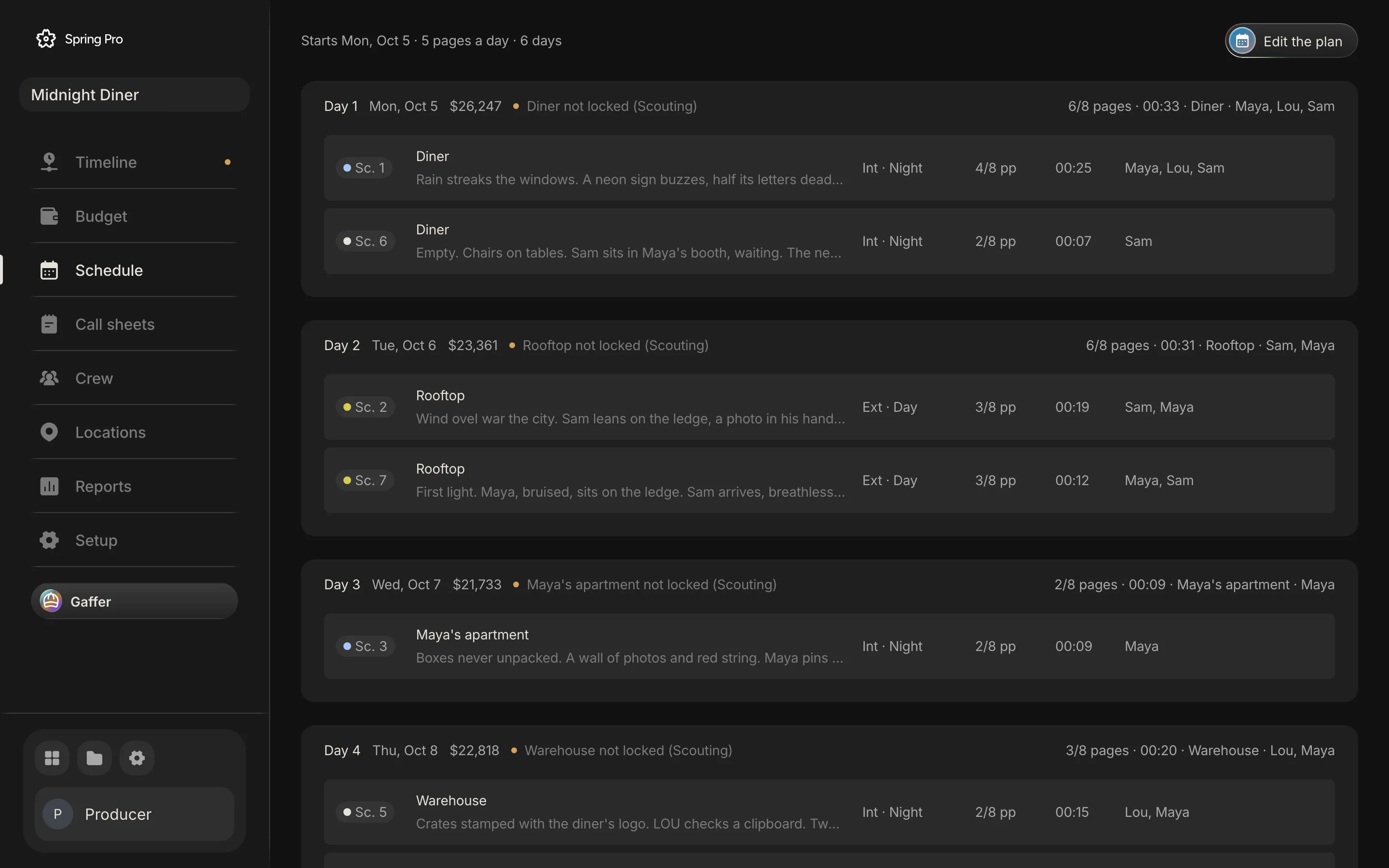
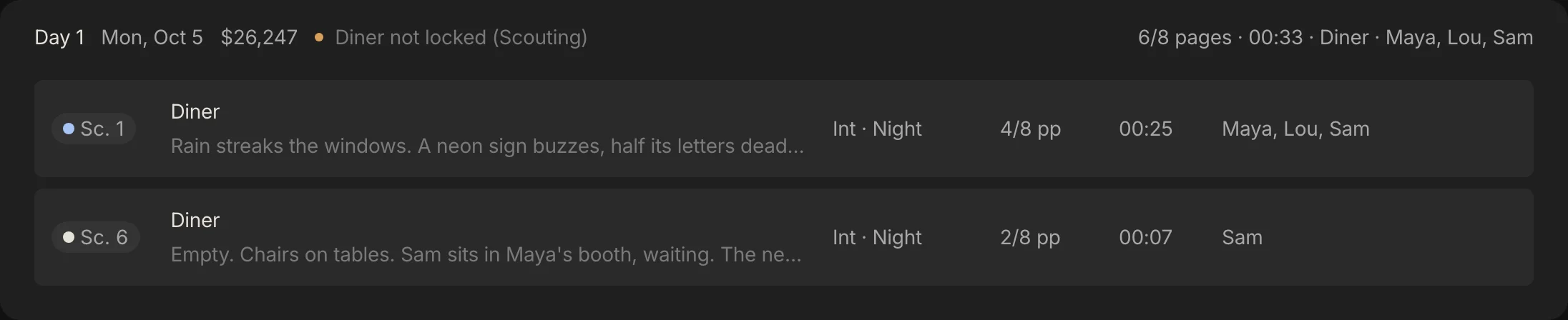
Each day header in the app already shows an orange note that its location is not locked yet. In this guide a warning means the three the schedule raises about the shoot day itself: more than one set, day and night mixed, or over the page target. No day carries one of those.
| Day | Date | Scenes | Pages | Set | Cast | Planned cost |
|---|---|---|---|---|---|---|
| 1 | 2026-10-05 | 1, 6 | 6/8 | Diner | Maya, Lou, Sam | $26,247 |
| 2 | 2026-10-06 | 2, 7 | 6/8 | Rooftop | Sam, Maya | $23,361 |
| 3 | 2026-10-07 | 3 | 2/8 | Maya's apartment | Maya | $21,733 |
| 4 | 2026-10-08 | 5, 4 | 3/8 | Warehouse | Lou, Maya | $22,818 |
Everything below changes this table. We changed one scene at a time in a copy of the script and ran it through the same functions the app uses: the screenplay layout, the schedule warnings and the budget engine. Nothing in the real project was touched.
Four revisions, traced through the schedule
The writer sends four changes. We run each on its own against the schedule above, so you can see what it alone does.
- 1. Scene 1 grows. Six new lines: an action line, four lines of dialogue between Lou and Maya, and a closing action line. Nobody joins the scene.
- 2. Scene 1 moves to daylight. One word in its heading changes, from night to day.
- 3. Sam joins scene 3. Three new lines in Maya's apartment, where Sam has not been. The scene's cast changes only when someone adds Sam to its breakdown, so we show both steps: 3a before, 3b after.
- 4. Scene 7 is cut. The rooftop dawn scene is removed.
| Revision | Scene length | Day pages | Warnings | Cast days | Planned cost of the day |
|---|---|---|---|---|---|
| 1. Scene 1 grows by six lines | Scene 1: 4/8 to 6/8 | Day 1: 6/8 to 1 page | No new warning | Unchanged | Day 1 stays $26,247. Scene 1's share of the day rises from 67% to 75% |
| 2. Scene 1 becomes a day scene | Unchanged | Unchanged | Day 1 gains: Day and night mixed | Unchanged | Unchanged until you act. Moving scene 1 to Day 5 clears that warning and adds $21,733 to the planned cost of the days |
| 3a. Three lines for Sam in scene 3, cast not updated | Scene 3: 2/8 to 3/8 | Day 3: 2/8 to 3/8 | No new warning | Unchanged: Day 3 still lists Maya | Unchanged |
| 3b. Sam added to scene 3's cast | As 3a | As 3a | No new warning | Sam works 3 days, not 2. Day 3 lists Maya and Sam | Day 3 rises from $21,733 to $23,361, which is +$1,628 |
| 4. Scene 7 is cut | Scene 7 leaves | Day 2: 6/8 to 3/8 | No new warning | Unchanged: Sam and Maya still shoot scene 2 | Unchanged: Day 2 still costs $23,361 |
A longer scene changes pages, not the price of the day. The cost engine prices people by the day, not by the page, and the planned day stays 11 hours. What moves is how a day's cost is shared between its scenes, which follows pages. If scene 1 cost Day 1 an extra hour, that hour would be $2,993.
The page warning will not catch it. It fires when a day passes the plan's pages a day, which is 5 here, so scene 1 would have to grow from 4/8 to 4 7/8 pages before Day 1 warned. The target is a setting in the plan (3, 4, 5, 6 or 8), so a lower one warns sooner, but it counts pages and not hours.
A new time of day is the expensive one to fix. The app flags mixed light the moment the heading changes, and the fix is yours to choose. Moving scene 1 to the empty Day 5 clears that warning and puts a second diner day in the film, which adds $21,733 to the planned cost of the days. Day 4 is a night day, so check Day 5's call against your rest rule.
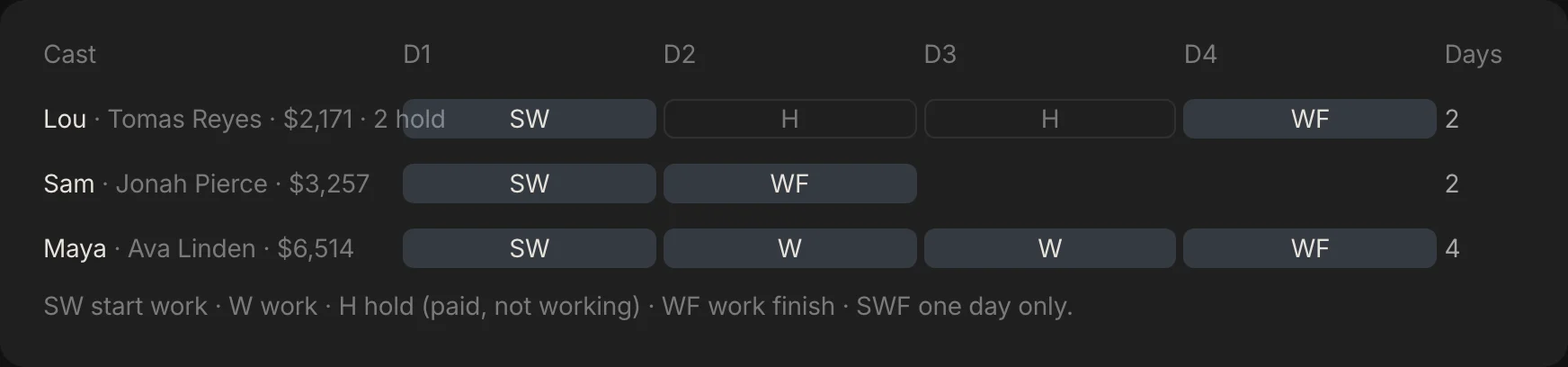
A cast change is the one that moves money. Sam's third day adds $1,628 to Day 3 and takes his line in the day out of days from $3,257 to $4,885. Nothing changes until his name is on the scene's cast.
A cut saves money only when something leaves the day. Day 2 loses half its pages, but Sam and Maya still shoot scene 2, so it prices the same. The saving arrives when a day, a person or a location goes. In Spring Pro a cut scene is hidden but is not taken off its day for you, and the budget reads the scenes left on each day, so if a cut empties a day, remove that day yourself.
Before you start
A revision is quick to handle if you have what you need, and slow if you are hunting for it. Tick this list first.
- The revision in hand. The new pages, the cover memo or the title page revision list, and its date.
- The list of changed scenes. The memo and the margin asterisks name them. With neither, compare the scenes one by one.
- The old numbers written down. Each day's pages, cast and price before you change anything. Spring Pro shows the new numbers but not the previous ones beside them.
- One owner for the breakdown. Someone updates the elements of every changed scene, so the schedule is not built on a stale list.
- A place to log the change. A version, a date and a reason, as Step 7 sets out.
Step 1: List the changed scenes
A revision is a short list, not a new script. The memo, the asterisks and the title page log name the changed pages, and the pages name the scenes. Filmdaft's routine for whoever inserts pages starts the same way: confirm the title page revision, read the cover memo, then replace pages by their exact number.
In Spring Pro the script has two tabs, Draft and Scenes. Edit a scene in Scenes and the schedule follows at once. If the new pages arrive as a rewritten draft, paste it into Draft and press Update scenes. Gaffer reads the draft against your scenes and proposes the changes for you to tick.
The review lists one row for each proposal, with its reason and a count of how many are ticked. Here is every row it can show, from the app's own code.
| Row | What it means | What Apply does |
|---|---|---|
| Changed | An existing scene was rewritten to match the draft | Replaces the scene's lines, keeps its id, keeps the old lines hidden rather than deleting them, and fills only the shot picks you have not set |
| New | The draft has a scene the script does not, with the scene it follows | Inserts it after that scene, with its shot picks. It starts under Not scheduled |
| Removed | The draft no longer has the scene | Hides the scene and its lines (a soft delete). The scene's board stays |
| Split | One scene became two or more | The first part keeps the scene, and the rest follow it |
| Merged | Two or more scenes became one | The first scene keeps its id and the others are removed |
| Your edit | A change to a scene you edited by hand, or that the draft never wrote | Starts unticked. Tick it to take the draft's version |
A scene that still matches is a keep, and a keep needs no decision, so it is not listed. Nothing changes until you press Apply. After it, Undo last update puts back the scenes from the latest update, and the draft that made them is saved as a dated version.
Two limits matter for scheduling. A scene the draft never wrote counts as edited by hand, so on a project whose scenes were typed straight into the script, every proposed change to an existing scene starts unticked. And the review touches only the script lines and the shot picks (shot size, angle, lens, move, light and a composition note), never the cast or a breakdown element.
We have not recorded a run of Update scenes on Midnight Diner, because it needs Gaffer to read a draft, so this page has no screen of it. The rows above are what the review is built to show. Check each one, because what Gaffer proposes depends on your draft.
Step 2: Re-size the changed scenes in eighths
A scene that grew or shrank moves its day's page count, so size it again. Eighths are the unit: eight to a page.
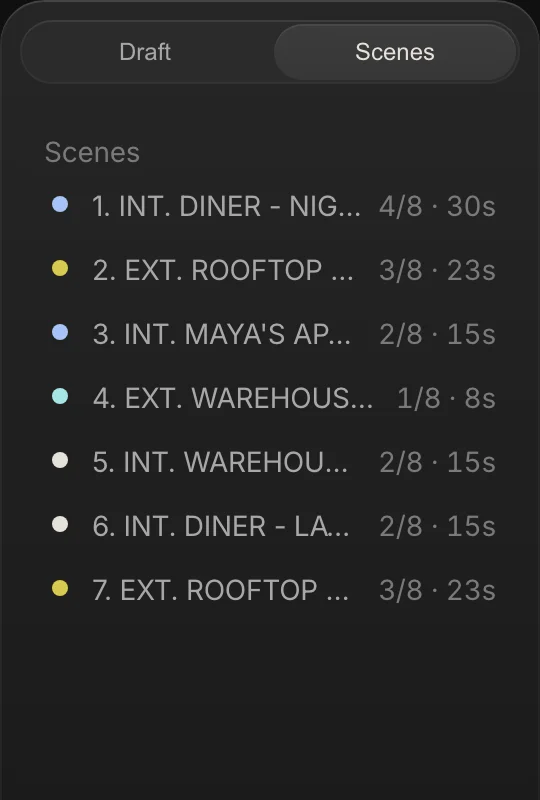
Spring Pro does this as you write. It counts the scene's printed lines on a 55-line page, with the blank line between elements, and rounds up to the next eighth, with a minimum of one. Six new lines took scene 1 from 4/8 to 6/8, and three took scene 3 from 2/8 to 3/8.
The schedule reads those sizes at once. Day 1 went from 6/8 to 1 page, and Day 3 from 2/8 to 3/8. This is the same sizing step as in how to make a shooting schedule.
Step 3: Update the breakdown for those scenes
New cast, props, wardrobe or a new set change the schedule and the budget. List what each changed scene now needs, scene by scene. The method is in how to do a script breakdown.
This is the step a revision does not do for you. In Spring Pro a scene's cast comes from the Cast chips on its breakdown, not from who speaks in the script. So three new lines for Sam changed scene 3's length at once and changed nothing about its cast. Until his name was added, Day 3, the day out of days and the cost all still showed Maya alone.
A cast change reaches further than the cast list. Sam has a wardrobe entry in scenes 1, 2, 6 and 7 and none in scene 3. His raincoat is soaked in scenes 1 and 6 and dry in scene 2, so scene 3 needs a state for it. Add a character from the scene's Add menu, or ask Gaffer to add one.
If the budget is locked, a new breakdown item or location you add here also shows on the Budget page as a new script item since the lock, waiting to be priced.
Step 4: Recheck the affected days, and only those
Run four checks on each day that holds a changed scene: pages, warnings, cast and cost. Skip the days nothing touched. How to make a shooting schedule has the full set, and here they are on the revisions.
| Check | What it looks at | What moved |
|---|---|---|
| Pages | The day's total in eighths, against the page target (5 pages) | Day 1 up to 1 page, Day 2 down to 3/8, Day 3 up to 3/8. None near the target |
| Warnings | More than one set, day and night mixed, over the page target, and a location not locked yet | Day and night mixed on Day 1 after the heading change. The not-locked notes were already there |
| Cast days | Who works which days, and who waits (the day out of days) | Sam gains a day. Lou's two holds stay |
| Cost | The planned price of each changed day | Day 3 up $1,628. Day 1's cost is shared differently between scenes 1 and 6 |
In Spring Pro each day's header carries its date, planned cost, pages, set, cast and any warning, so the first three checks are one glance at the days that changed. The day out of days is built from the same schedule, so Sam's row changes with the cast, as the day out of days guide explains.
Step 5: Fix what the checks find
A warning is a question, not an order. For the mixed day there are three answers: move scene 1 to another day, move scene 6, or go back to the writer. We ran the first.
In Spring Pro you right-click a scene and pick the day, or drag it. Moving scene 1 to the empty Day 5 clears the mixed-light warning. Day 1 then holds scene 6 alone and drops to $22,633, and Day 5 holds scene 1 at $25,347. The four days' planned costs added together rise by $21,733, because the diner is now two days and the whole crew works both.
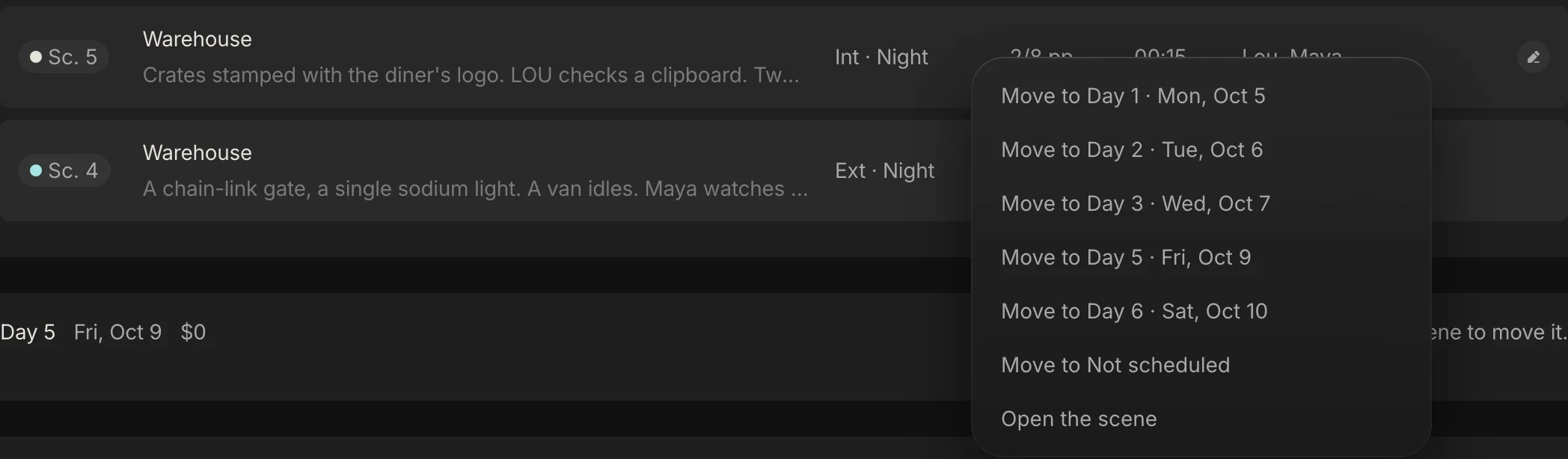
Day 4 is a night day, so check Day 5's call against your rest rule before you accept the move. Turnaround and meal breaks has the rules and a calculator, and Spring Pro does not check turnaround.
Step 6: Reissue the call sheets for those days, and mark them
Only the days that changed get a new sheet. Scriptation, an app vendor, says the colour scheme extends to call sheets, so mark a revised sheet in the same colour as the pages. Put the colour and the date on it, and send one version (how to make a call sheet has the routine).
In Spring Pro the sheet is built from the schedule, so it already shows the new scenes and cast. It prints. It does not mark a sheet as a revision, so write the colour and the date in the day's Notes box before you print.
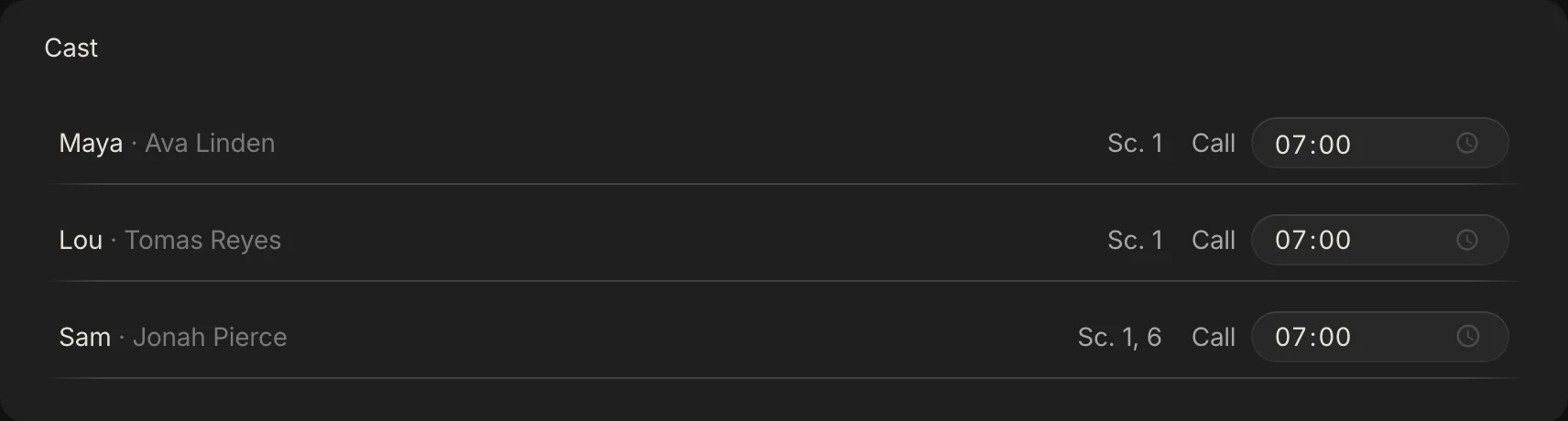
One change is easy to miss. Scene numbers in Spring Pro are counted from the order of the scenes and are never locked. A new scene after scene 3 would take number 4 and push Day 1's second diner scene, INT. DINER - LATER, from scene 6 to scene 7, so a sheet printed last week and one printed today would disagree about "scene 6".
The schedule itself stays right, because each day points at a scene's permanent id and not its number. A new scene sits under Not scheduled until you place it, so no day's price includes it before then.
Step 7: Log it, and say so the same day
Every revision needs a version, a date and a reason, and the people holding the old plan need to hear it the same day. Write the reason as one line: what changed, which days it touched and what it cost. For revision 3 that reads "Sam added to scene 3, Day 3 up $1,628, call sheet reissued." That wording is our own advice, not a rule from the sources.
Spring Pro keeps each applied draft as a dated version (v1, v2 and so on) in the Draft tab, and Restore this version puts an old one back as the working draft. It has no field for the reason and no version list of the schedule. Keep the reason in your own log, or in the day's Notes.
Doing it in Spring Pro: what it does, and what it does not do yet
Spring Pro reads one script, so a change to it reaches the schedule at once. Scene sizes, each day's pages and each day's warnings follow the script as you write. The cast report, the call sheets and the price of each day follow each scene's Cast chips and breakdown, so they change when you update those. A scene keeps its permanent id through an update, so its board, its breakdown and its day stay attached.
What follows from a revision is still yours: the breakdown of the changed scenes, the cast, the choice of fix and the revision marks on the call sheets. See shooting schedule software for the tool and script breakdown software for the lists.
Not built yet: coloured revision pages, locked scene numbers, lettered pages and omitted-scene stubs, a flag on a day when one of its scenes changed after you scheduled it, a summary of what a revision changed across days, and a log of script revisions with reasons. A locked budget does log changes to its own lines with who, how much and why, and counts new breakdown items and locations since the lock, but it does not log script changes. Importing a revised Final Draft or Fountain file into a project that already has a script opens it as a separate script and does not merge into your scenes. To merge, paste the new draft into the Draft tab and use Update scenes.
How people handle a revision today, and what breaks
There are four common ways, and they differ in what you redo when a revision arrives. This is our view, not a test of products, and we did not test other schedulers for this page.
| Way of working | Good for | When a revision arrives you must |
|---|---|---|
| Paper strips and coloured pages | One AD, a short script, a small crew | Find the changed scenes, redo each strip, reprint the day sheets and hand them round |
| Screenplay software plus separate scheduling software | A feature with a script coordinator | Issue the pages in one program, then change the strips, cast lists and costs in the others |
| A spreadsheet | A short with a few scenes | Edit the rows, recount the pages and the cast days, and retype the call sheet |
| One project where the schedule reads the script (Spring Pro) | A script that changes weekly and is read by many people | Update the breakdown of the changed scenes. Pages, warnings, cast days and prices follow. There are no revision colours or change flags |
Our view, not a test: a careful spreadsheet can carry a few revisions, and the work grows as revisions arrive more often and more people hold the pages.
From a short to a feature: what changes
The routine does not change with size. What grows is the number of revisions, the number of people holding pages and the cost of a wrong day. These sizes are rough labels, not industry definitions.
| Size | How revisions arrive | What to add | Where Spring Pro stops |
|---|---|---|---|
| Solo or YouTube video | You change the plan yourself | A dated note of what changed | Nothing yet |
| Short film | A few rewrites before the shoot | The routine above, once per rewrite | Nothing yet |
| Commercial | Client changes, often late | A short list of affected days, and a sign-off | No client sign-off |
| Indie feature | Coloured pages, a script coordinator, many revisions | The colour order, lettered pages, locked scene numbers, a daily change memo | No coloured pages, locked scene numbers or change flags |
| Series or episodes | Several scripts at once | A schedule per block | One script and one unit per project |
Our view: features are where the colours earn their cost, because many people hold paper at once. A short with a handful of people needs a clear note more than a colour wheel.
The checklist
Copy this. Tick it for every revision.
- The new pages carry a colour and a date, and the title page lists the revision
- The changed scenes are listed by number
- Each changed scene is re-sized in eighths
- The breakdown of each changed scene is updated, cast and wardrobe included
- Only the days that hold those scenes are rechecked: pages, warnings, cast days and cost
- Every warning is answered, and every move is checked against the rest rule
- The call sheets for the changed days are reissued, marked with the colour and the date
- The change is logged with a version, a date and a reason, and people are told the same day
How these numbers were made
Every number about Midnight Diner comes from the project itself and from Spring Pro's own engines: the screenplay layout sizes each scene, the schedule code finds each day's warnings, and the budget engine prices each day with a planned 11-hour day and overtime after hour 10. The revisions are our own changes to a copy of the script, written for this page, and the build stops if the project changes so that the story no longer holds. The traced script is also checked against the app: without any revision, the same code reproduces the real day pages and costs.
Where this page says the planned cost of the days rises, it means the four day costs added up, as the schedule shows them. The Budget page's own forecast total counts a shot day at what it actually cost, so for the Day 5 move it rises by $20,833 instead of $21,733. Use the Budget page for the film's total.
Midnight Diner is a demonstration production, not a case study of a real shoot, and no real revision is shown. The colour order and the page marks come from the sources below, read on 2026-10-12, and practice differs between productions. Scenes, warnings and prices are Spring Pro's, and we have not recorded a run of Update scenes on the sample.
Questions people ask
What are script revision colors?
Each new set of changed pages is printed on a different colour, so everyone can see which pages are the latest. StudioBinder, a competitor, says the order was set by the Writers Guild of America, which we could not check against the guild's own page.
What is the order of script revision colors?
White, blue, pink, yellow, green, goldenrod, then buff, salmon and cherry in most lists, with tan added in two of the four guides. Scriptation lists the last ones in a different order in two places. After the last colour the cycle restarts as second blue or double white, depending on the source. See the table above, and check your title page.
What are blue pages in a script?
The first revision after the white production draft, as Scriptation, an app vendor, describes it. UK productions commonly swap blue and pink, so check which your production uses.
What are A-pages in a script?
Inserted pages with a letter after the number, such as 25A, so the numbering of the later pages holds. Filmdaft explains that page 26 stays page 26 when 25A and 25B are added.
Do you have to reschedule after every script revision?
Only the days that hold changed scenes, and any day where a person now works or stops working. List the changed scenes, then recheck pages, warnings, cast days and cost on those days. See how to make a shooting schedule.
What does a script revision cost a shooting schedule?
It depends on the change. On Midnight Diner a cut and a longer scene cost nothing, an actor added to a scene cost $1,628, and clearing a day and night mix by adding a second diner day added $21,733 to the planned cost of the days. These are worked examples, not benchmarks.
How do I know which shoot days a revision touches?
The days that hold the changed scenes, plus the days of anyone newly added or dropped. In Spring Pro each day header lists its scenes and cast, so match the changed scene numbers against it. The day out of days guide shows how cast days shift.
Does Spring Pro do coloured revision pages?
No. It has no coloured pages, no locked scene numbers, no lettered pages and no flag on a day when a scene changed. It does re-size scenes as you write, show each day's pages, warnings and price, and keep dated draft versions. A locked budget also counts new script items since the lock.
What happens in Spring Pro when a scene changes?
Its length in eighths updates at once, and the schedule, warnings and prices follow. Its cast does not change until you add or remove a character on the scene's breakdown. The scene keeps its permanent id, so its day stays attached.
Who decides the revision colour?
The guides we read name no single person. Filmdaft says that in many workflows the script department prepares revisions and sends them out, and the title page log is the record of each colour. Agree it in your production office.
Can I import a revised script into Spring Pro?
A Final Draft or Fountain file imported into a project that already has a script opens as a separate script. To bring changes into your scenes, paste the new draft into the Draft tab and use Update scenes, then tick what you accept.
Sources
Every outside claim that names a source comes from one of these, read on the date shown. Standard conventions, such as the eighths rule and the usual specialist cases, are common practice. Figures from agreements and summaries change at each negotiation, so check the current text before you rely on a number.
- Scriptation, script revision colors (an app vendor; page dated 10 May 2026). Checked 2026-10-12.
- Filmdaft, script revision colors explained: blue pages, A-pages and revision marks (a film guide site; published 18 December 2025, updated 1 October 2026). Checked 2026-10-12.
- Filmustage, two documents, one script: a history of script revision colors and markup (a software vendor; 20 August 2026). Checked 2026-10-12.
- StudioBinder, what are script revision colors (a competitor's guide; 4 April 2025). Checked 2026-10-12.
- No Film School, how to design your film's shooting schedule (Amy Clarke; 17 November 2020). Checked 2026-10-12.
More about shooting schedule
A schedule is a labour bill. The cost of an error is paid in hours.
- Film production scheduling: the whole picture. The complete guide
- Scenes become strips. Strips become shoot days. The tool
- A film shooting schedule template, laid out as a stripboard.
- How to make a shooting schedule for a film, with a real sample.
- Turnaround and meal breaks on a film shoot: the rules and a calculator.
- What a day out of days report is, and how to read one.
- One line schedule vs stripboard: the same four days, three ways.
- How to schedule a night shoot for film: the calls, the meals, the rest and the loadings.
- Film weather cover day: how to swap a rain day, with worked costs.
- What is a stripboard?
- What is a day out of days?
- What is turnaround on a film set?